
How to Fix Slow Wi-Fi in Your Office
Article Summary: To fix slow office Wi-Fi, check whether the problem affects one device, one area, or everyone, then compare Wi-Fi with a wired connection. Poor coverage, radio interference, heavy usage, and device faults need different repairs. The tests help you decide whether to change equipment, settings, or the internet service. This article will guide you on how to fix slow Wi-Fi in your office.
When several people complain about the Wi-Fi, it’s tempting to call your internet provider and ask for a faster plan. You want it fixed, and upgrading sounds easier than tracking down why a call works at one desk but freezes in the meeting room.
Your internet service connects your business to the outside world. Wi-Fi connects laptops, phones, and other devices to your office network without a cable. Finding out which part is causing the trouble will help you decide what to repair.
Understanding how to fix slow Wi-Fi in your office is essential for maintaining productivity and ensuring a seamless connection for all devices.
How to Fix Slow Wi-Fi in Your Office
Connection checks
“The Wi-Fi is slow” could mean that one laptop disconnects, everyone’s uploads stall, or the accounting software takes a long time to open. A useful report describes what failed, where it happened, and who was affected.
For example: “Video calls keep dropping in the meeting room, but people at their desks stay connected.” Tell IT roughly when it happened so they can check the relevant logs.
Your IT provider can then compare the same computer on Wi-Fi and on a wired office connection, with Wi-Fi turned off for the wired test. They should use an approved connection and test the same application under similar conditions.
If the application works well over a cable but fails on Wi-Fi, IT can investigate the wireless connection and the computer’s Wi-Fi hardware. If it runs poorly on both, they’ll also need to check the wider network, internet service, and application.
Coverage and equipment placement
An access point connects your wireless devices to the network. In a small office, that function might be built into the router. Larger offices often have separate access points mounted around the building.

Think about where yours was installed. Was it chosen to cover the working area, or was that simply where the internet cable entered the building?
Distance and building materials affect the signal. Concrete walls and other obstructions weaken it as it travels between the access point and your device.
A wireless site survey measures signal conditions and interference around the office. Together with a review of how each area is used, it helps IT choose equipment locations and settings. The meeting room needs to be checked from inside, with its door closed if that’s how you use it.
With those measurements, IT can decide whether to move an access point or add one, and where it should go. The position and mounting should follow the manufacturer’s instructions for that model.
Busy networks and interference
Wi-Fi devices send data over radio channels. Devices within range of each other that actively use the same channel share time on it. As that channel gets busier, they spend more time waiting to transmit. Nearby businesses can contribute to that traffic too, even though their staff never connect to your network.
When people say “it works before everyone arrives,” IT needs to test while the office is busy.
During a training session, several laptops might be downloading files and joining online exercises in the same room. IT needs to assess that room with those demands in mind, rather than relying on a coverage test with one laptop.
IT can check channel usage during the affected hours and look for interference from nearby equipment. Depending on the findings, the fix could involve different channels, adjusted radio settings, or more capacity in a busy area.
Those changes need coordination across the access points. Putting another unit beside an overloaded one and leaving both competing on the same channel can add to the congestion.
The numbers 2.4 GHz, 5 GHz, and 6 GHz refer to Wi-Fi frequency bands. For example, 2.4 GHz generally reaches farther through walls than 5 GHz, while 5 GHz offers more channel choices. Equipment support and local radio rules determine which bands and channels IT can use in your office.
Video calls and file uploads
A speed test shows how much data the tested connection can transfer at that moment. For a video call, IT also needs to understand whether data is arriving consistently and on time.
Lost data, delays, and uneven arrival times can mean missing words, long pauses, or a picture that freezes. Microsoft documents how these problems affect Teams calls. IT can investigate those symptoms even when a speed test shows plenty of download capacity.
During an online call, your computer uses upload capacity to send any audio, video, or screen content you share. A large file transfer can compete for the same capacity, so IT should check upload usage as well as downloads.
To check whether a file transfer is affecting calls, IT can compare call-quality reports with network usage at the same time. If they confirm congestion, its location will help them choose a fix, such as scheduling large transfers, configuring traffic priorities where supported, or increasing the connection’s capacity.
Access-point connections
An access point also needs a connection back to the rest of your network. That can be an Ethernet cable or, in some installations, a wireless link to another access point.
A wireless repeater receives traffic and sends it onward over another wireless link. That extra transmission uses radio capacity too. The effect depends on the equipment, link quality, and number of wireless hops.
For a room that regularly hosts video meetings, a wired connection to a suitably placed access point is worth considering. It removes the need to carry that access point’s traffic over an additional wireless link.
IT should check the access point’s existing cable and network connection before recommending a replacement.
Computer and software checks
When one laptop keeps disconnecting while others work normally beside it, compare the devices before changing the whole office network.
IT can check the affected computer’s Wi-Fi hardware and software, including the driver that lets the operating system use the Wi-Fi hardware.
The router and access points run software called firmware, too. Your IT provider should check for firmware and device software updates, which can fix faults as well as security problems.
IT should schedule updates and restarts around calls and other work that depends on the network. Before changing settings, they should back up the current configuration so it can be restored if necessary. Don’t try a factory reset yourself: it can erase the settings needed to get the office connected again.
Repair testing
Once the work is done, repeat the activity that was failing. Use the same room and affected devices, at a time when the office has its normal workload.
If the complaint was about video meetings, run a meeting. If it was about losing the connection while moving between rooms, test that route.
Apple recommends checking the wireless network after installation under realistic conditions, including with people in the building and doors closed where that reflects normal use.
Have IT record the fault they found, what they changed, and the test results. Keep that with your network records so there’s a reference if the problem returns.
Frequently Asked Questions
Will upgrading our internet plan fix slow office Wi-Fi?
If your internet connection is running out of capacity, a faster plan may help. But it won’t fix weak Wi-Fi coverage or radio interference. IT can compare the same work over Wi-Fi and a wired connection before recommending a change.
Why does Wi-Fi work at my desk but fail in the meeting room?
Distance, walls, and the number of devices using the network can affect the connection. IT needs to test inside the meeting room while it’s in use, with the door closed if that’s normal for your meetings.
Should we buy a Wi-Fi extender?
An extender that repeats the signal over Wi-Fi adds another wireless link, which uses radio capacity. Before buying one, have IT check the existing access-point locations and connections. They can then work out whether different placement, a wired connection, or additional equipment would fix the problem.
Why are video calls poor when a speed test looks good?
A speed test shows how much data the connection can transfer at that moment. Calls can still break up when data is delayed or lost along the way. Your provider should check the call-quality reports as well as network usage, including uploads.
IT Support
And if you don’t have an IT provider, you can always reach out to us and we’ll help you out.
Sources and further reading
- Fix Wi-Fi connection issues in Windows | Microsoft Support
- What is an Access Point? – Cisco
- Access point range and signal strength maximization – Cisco Meraki Documentation
- Channel Planning Best Practices – Cisco Meraki Documentation
- Optimize your Wi-Fi networks for Apple devices – Apple Support
- Use CQD to manage call and meeting quality in Microsoft Teams – Microsoft Teams | Microsoft Learn
- Wireless Mesh Networking – Cisco Meraki Documentation
- Troubleshoot Wireless Speed Issues – Cisco
- Recommended settings for Wi-Fi routers and access points – Apple Support
Image sources
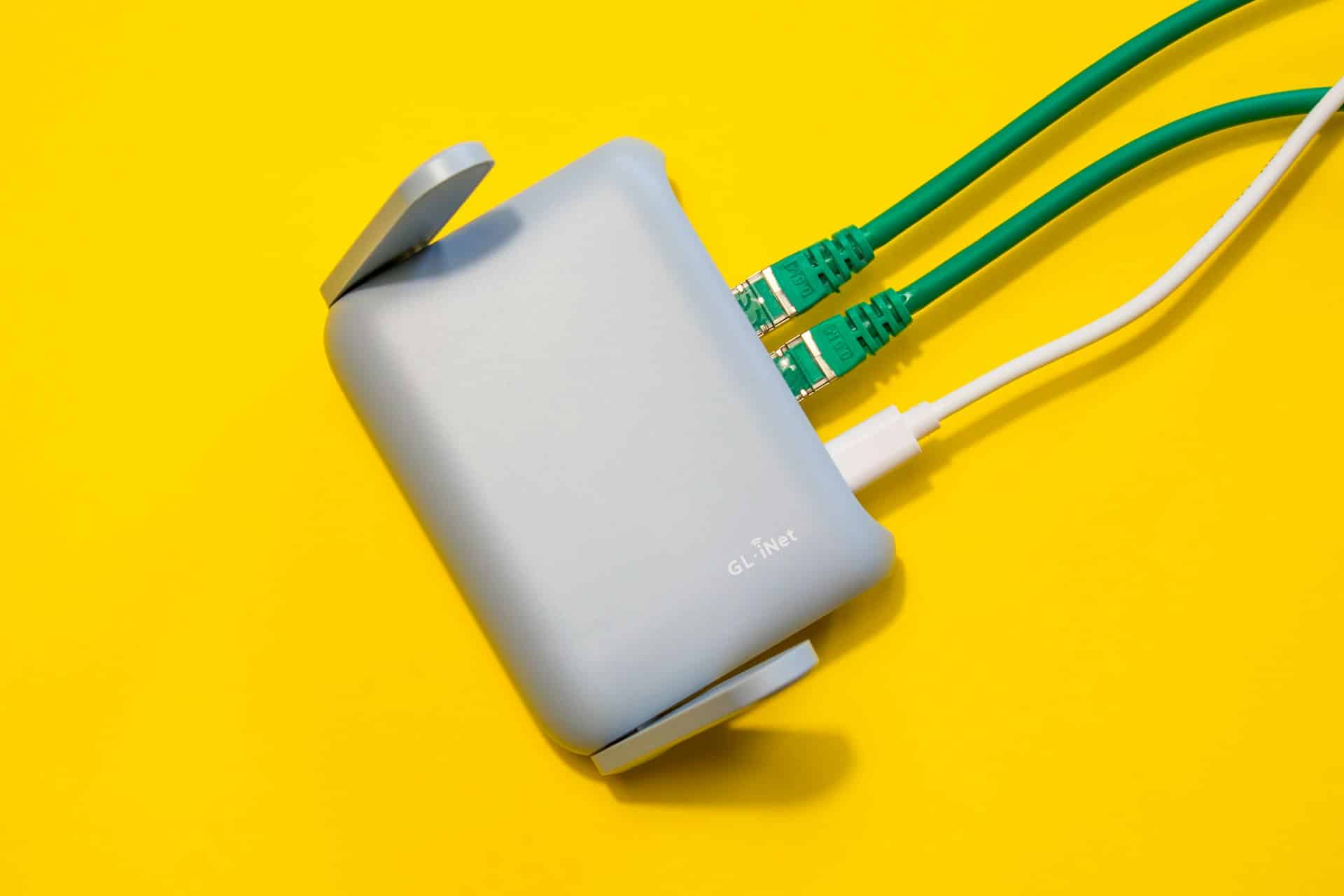
- Feature image: Compact Wi-Fi router with Ethernet cables on a yellow background
- Body image 1: Ethernet cables plugged into network equipment
- Body image 2: Office corridor with glass partitions and separate rooms
Article used with permission from The Technology Press.